Thursday, January 12, 2023

How to import contacts that include foreign language UTF-8 text, from Google to Outlook 2021 on PC

Nowadays as I am writing these lines Outlook 2021 has some unresolved issue with importing contacts from Google to Outlook 2021 installed on a PC. When Excel 2021 simply open the *.CSV file that was created by Google, UTF-8 foreign language text is displayed in Excel as gibberish and being imported to Outlook as gibberish while English text is displayed OK.

I found the following way to import the contacts from Google to Outlook properly so all the text is displayed correctly.

Note: Click on any of the following pictures to enlarge it.

1.    Export contact/s from Google to *.CSV file

1.1    Open Google contact/s

This example will export from Google a single contact.

Go to Google's contact and click a contact to open it.


1.2    Click the three dots at the top right corner of the contact page

If you wish to export a batch of contacts select/check the contacts you want to export, then click the three dots that will be displayed above the contacts list.


 1.3    Click Export


1.4    Select the Outlook CSV option.

Click Export and save the CSV file that was created by Google.
In this example the name of the saved CSV file is contact_from_Google.csv


2.    Process the contact_from_Google.csv file


2.1    Open Excel 2021. Click Data, Get Data, From File, From Text/CSV


2.2    Navigate to contact_from_Google.csv file and click Import.


Pop-up window, as shown in the next step, will open.


2.3    In the pop-up window make sure that

        File Origin is 65001 and Delimiter is Comma     

In the above pop-up window, if everything was imported properly to Excel, the foreign language text and the English text should be displayed correctly.

Click the Load button.


2.4    Uncheck Header Row then click Home


 2.5    Select the 1st row and delete it


2.6    Delete SHEET1


2.7    Save As,
        in Save as type field select CSV (Comma delimited) (*.csv)


Warning:
Don't select the CSV UTF-8 (Comma delimiter) option
shown above the CSV (Comma delimited) (*.csv) option.
Rename the file.
In this example the new name is Book1.csv
Click Save.


3.    Import Book1.csv to Outlook 2021

We started with contact_from_Google.csv file that
was created by Google and after some processing we have now
the Book1.csv file ready to be imported contact/s to Outlook.


3.1    Open Outlook 2021. Click Contacts icon in the left bottom bar


3.2    Click File in Outlook top bar


3.3    Click Open & Export and then Import/Export button


3.4    In the pop-up window select import from another file
Click the Next button


3.5    Select Comma Separated Values
Click the Next button


3.6    Browse to the location of Book1.csv
        Click the Next button


3.7    Select Contacts (This computer only)
        Click the Next button


3.8    Finally, in Outlook Import a File window click the Finish button
Outlook will import the contact/s from the Book1.csv file.


3.9    Here is how the imported contact will look in Outlook 2021


***

Thursday, January 22, 2015

Present negative numbers with minus sign or with parenthesis

1. Go to Control Panel
2. Click on Region and Language
2. Click the Addition settings… button at the bottom of the Formats TAB


4. Click the Numbers TAB and in the Negative number format option change
    the 
way negative numbers will be presented in Excel.
    This change will also be applied on cells with Accounting format.


* * *

Friday, December 26, 2014

Multiplying hours and dollars

In order to obtain the right results of Dollar X Hours calculations in cell C12, the total hours of cell C10 must be multiplied by 24 to compensate on the way that Excel is handling cells with time format. Thus C12 should have the formula C10*24*C11.


* * *

Wednesday, December 10, 2014

Summing work hours in Excel

Excel cell with the regular Time format hh:mm counts or sums up to 24:00 hours therefore to sum and display amount of hours greater than 24 hours, the format of the cell must be customized.

In order to sum the total work hours accumulated after several days, the format of the cell containing the total sum of the hours, should be changed to the Custom format type [hh]:mm.

Formatting cell G7 to [hh]:mm in 3 clicks:


* * *

Sunday, April 13, 2014

How to create new *.PST file

Outlook 2010 enables to keep Contacts/Calendar/Notes folders in an external file.
The file format is filename.PST.


To create a new PTS file, on the Home TAB click New Items, More Items, Outlook Data files . . .


* * *

Friday, October 18, 2013

Use portrait and landscape pages in the same doc

In order to change page orientation from portrait to landscape in the same Word 2010 document, section break must be inserted at the end of the text on the page that precedes the page with the modified orientation.

For example in document with four pages we would like that pages 1 and 2 will be in portrait orientation and pages 3 and 4 will be in landscape orientation, section break must be inserted at the end of the text on page 2.

Do the following:
1. Click once at the end of the text on page 2 to place there the courser.

2. Click the Page Layout TAB then click the Breaks icon.
   

    These options will be displayed


3. Click the Next Page under the Section Breaks options

 
    After this, the courser should be placed on page 3 of the document.

 
4. Click the Orientation icon on the Page Layout TAB
    The Portrait and Landscape options will be displayed.


5. Click the Landscape option.
    This will change the orientation of page 3 and all subsequent pages, to Landscape.

    * * *

Saturday, June 8, 2013

Set print area in Excel 2010


1. Select the area you want to print

2. Click the Page Layout TAB

3. Click the Print Area icon,

    Two options will be displayed Set Print Area and Clear Print Area.

4. Click the Set Print Area


* * *

Thursday, January 24, 2013

Disable Suggested Contacts in Outlook 2010


Stop Outlook accumulating contacts in the Suggested Contacts folder by clearing the checkbox of “Automatically create Outlook contacts for recipients that do not belong to an Outlook Address Book” located at the bottom of the Contacts page in Outlook Options.


Clear this checkbox
 

After the above steps, delete all contacts in the Suggested Contacts folder and from now on the folder will remain empty.

 
* * *
 

Sunday, November 4, 2012

How to display Excel sheet columns Right-to-Left

In Excel 2010:

Click the File TAB, Options, Advanced

Roll down to Display options for this worksheet section

Click to select the checkbox Show sheet right-to-left (3rd checkbox)
 
* * *
 

Monday, July 30, 2012

Insert filename in Word 2010 document header


1. Double click on the header area at the top of the open Word page.
- Design tab will open with Header & Footer Tools


2. Click the Insert tab.


3. Click the Quick Parts
- Pull-down menu will open


4. Click Field . . .
- Pop up window will display list of options to select

5. Scroll down and click Filename


6. Click the OK button


The filename will be displayed in the header


***

Sunday, July 1, 2012

How to delete Device’s Port in Windows 7

Click Start, Devices and Printers.
Click on the Device.
Click the Printer server properties button, at the top of the window. A new window will open.
In the new window click the Ports tab.
Select the port you wish to delete and then click the Delete port button.

Saturday, June 9, 2012

Delete all Calendar events in Outlook 2010


“Clean” your Outlook 2010 calendar by deleting all events:

1. Click the Calendar folder

2. Click the View TAB

3. Click the Change View button

4. Click the List button

5. In the main window select all events by Control+A

6. Delete the list of all events

* * *

Monday, April 30, 2012

View System Events in Windows 7

Reviewing Windows events is a good tool provides hints on SW and HW errors that the computer had faced, such as sudden restart or non-noticeable issues.

Two ways to see the event log:
(1) Click Start button Picture of the Start buttonControl PanelAdministrative Tools, double-click the Event Viewer. The Event Viewer window will pop-up.
In the left list, click Windows Logs, System.

To see the events, scroll down in the main window at the center.
Error will be written in red. Details of the event is given in the window at the bottom.
(2) Click the Start button Picture of the Start button. In the Search box, type Event Viewer, double-click the Event Viewer in the result list. The Event Viewer window will pop-up.
* * *

Monday, January 30, 2012

Change Power Point 2010 ruler from inches to centimeters

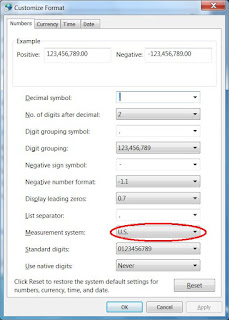
PowerPoint takes its measurement method from Windows.
Changing inches to centimeters in Windows 2010:

1. Click Start, Control Panel, Region and Language.
    Window will open.

2. Click the Additional settings button at the bottom of the Formats TAB

    New window will pop up.

3. Click the down arrow of Measurement system then click Metric

4. Complete by clicking the Apply button, and OK

* * *

Thursday, January 19, 2012

Find the computer's IP address in Windows 7

Option 1

  1. Click the network connection icon in the system tray
  2. Click the Open Network and Sharing Center
  3. Click Local Area Connection or Wireless Network Connection
    One of these links will be displayed depends on the connection type of the computer
    Pop up window will open
  4. Click the Details... button
    The IP address of the computer is displayed in the row next to IPv4 address
    It is a string of numbers and dots such as nn.nn.nn.nnn

Option 2

  1. Click Start, All Programs, Accessories, Command Prompt
    Black DOS window will open
  2. Type: ipconfig
  3. Scroll and find IPv4 address
    The IP address of the computer is displayed in the row next to IPv4 address
    It is a string of numbers and dots such as nn.nn.nn.nnn
* * *

Tuesday, January 10, 2012

Resize fonts in Navigation Pane of Outlook 2010

Outlook 2010 allows changing the size of the fonts in the Navigation Pane (where folders are displayed on the side of the screen). This feature doesn’t exist in Outlook 2007.

1. In Outlook 2010 Click the View TAB
2. Click the down arrow of Navigation Pane
3. Click Options. . .
4. Click the Font button

5. Choose the font type and size

6. Click the OK button

* * *